How ADHD Family works
A calm helper app for mornings, feelings and rewards. You can set it up in about 15 minutes.

Too long? Here's the short version
- A grown-up makes an account and sets things up: routines, rewards and a calm plan.
- The grown-up shows a 6-number code. The kid types it on their own phone or tablet.
- The kid gets one step at a time and taps Done. If they're stuck, they tap I need help.
- The grown-up's Home screen shows what needs them today. That's the whole loop.
Grown-up phone
- Sets things up
- Gives points
- Says yes to rewards
Kid phone
- Does the routine
- Big feelings button
- Spends points
Part 1 · Grown-up setup
⏱ about 10 min 📱 grown-up's phoneDo this once. Only emails on the invite list can make an account, so ask whoever runs the app to add yours first.
-
1
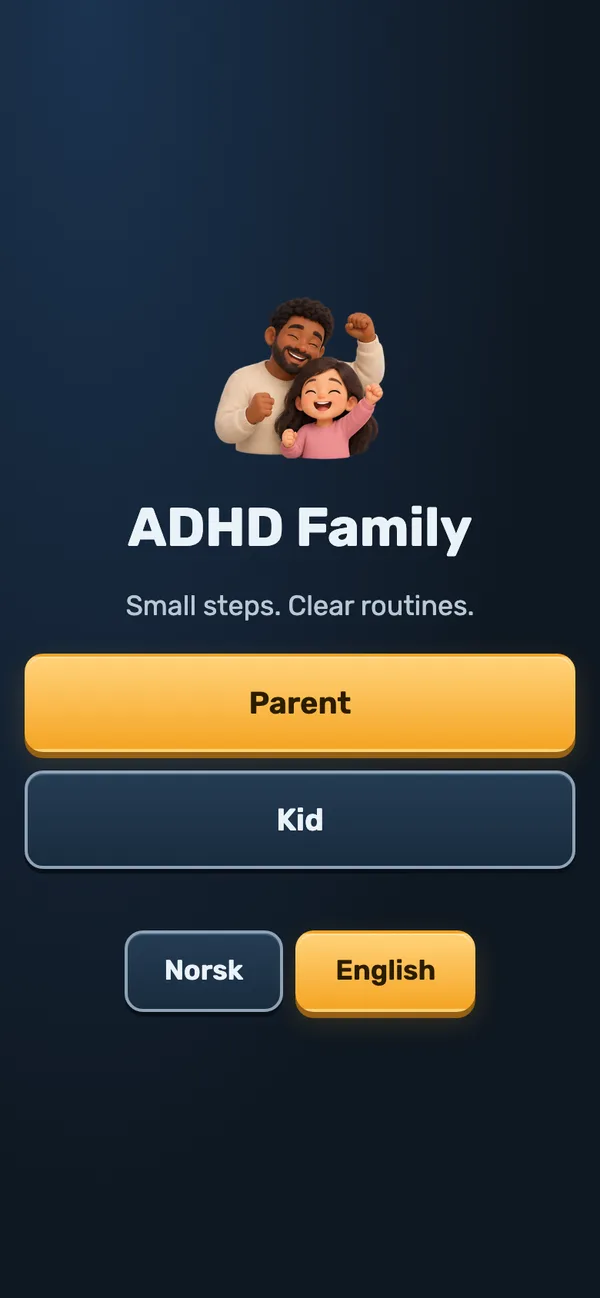
Open the app
- Go to family.qbitz.foo.
- Choose a language at the bottom: Norsk or English.
- Tap Parent.
Tip: In your browser menu, tap “Add to Home Screen”. Then the app opens like a normal app.
-
2
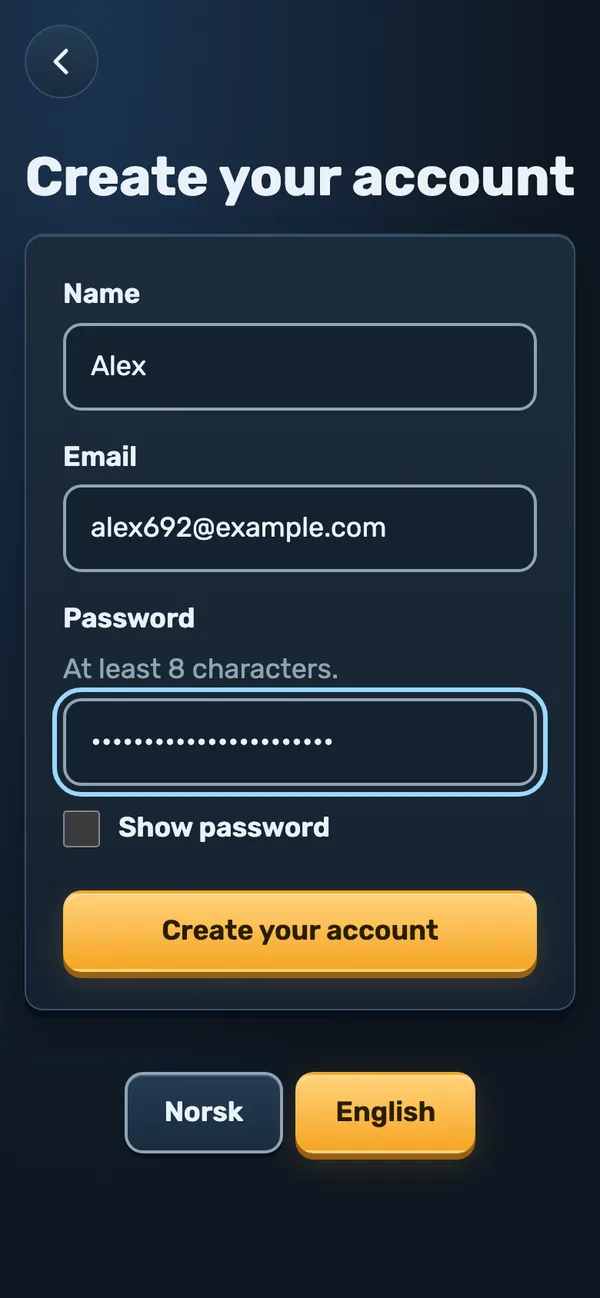
Make your account
- On the sign-in screen, tap Create account.
- Type your name, your invited email and a password (at least 8 characters).
- Tap Create your account, then Set up your family.
Heads up: You won't get an email, and the app can't reset your password by email. Save your password somewhere safe.
-
3
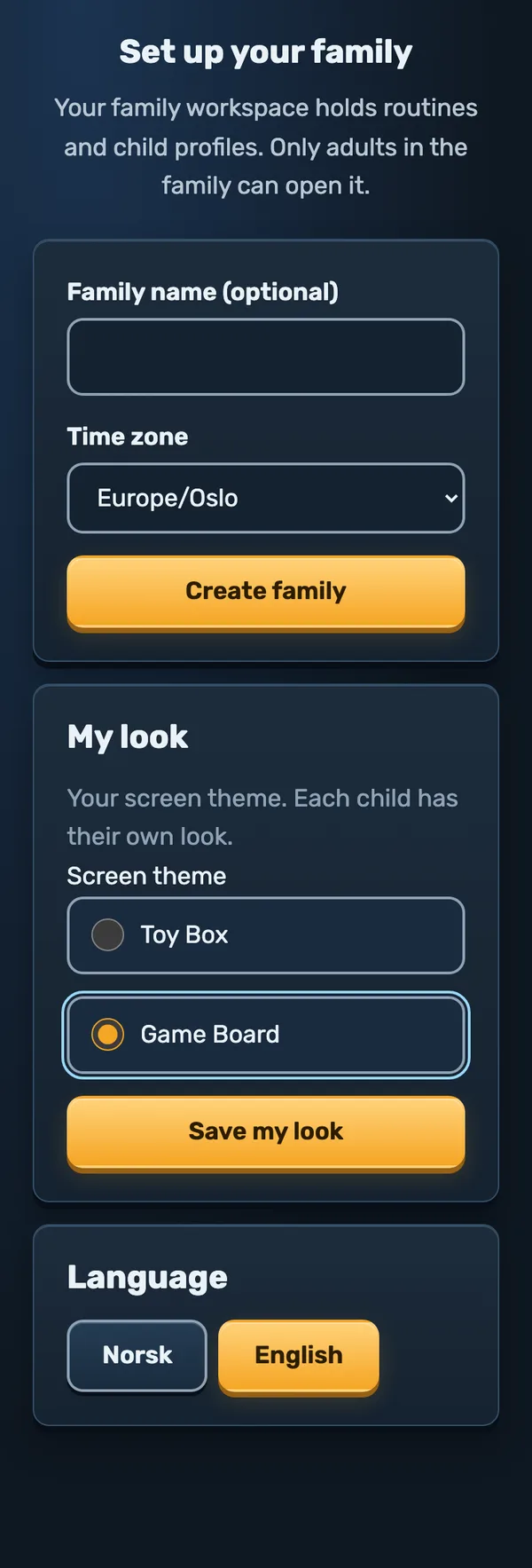
Create your family
- You can give your family a name. You can also skip it.
- Check that the time zone is right (Europe/Oslo).
- Tap Create family.
Why? The “family” is your private space. Only grown-ups in it can see the kids' stuff.
-
4
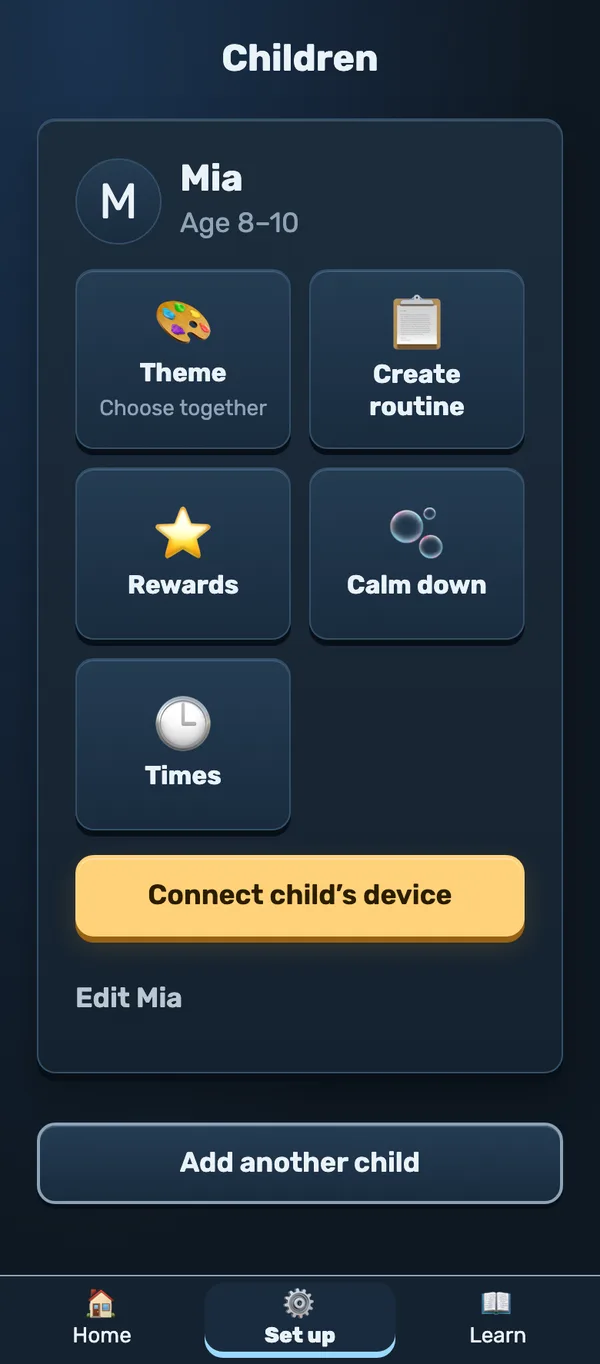
Add a child
- Type a name or a nickname. A nickname is fine.
- Pick an age band. You can also pick a picture.
- Tap Add child.
Now you get a child card with buttons: Theme, Create routine, Rewards, Calm down and Times. Next, we'll use these.
-
5
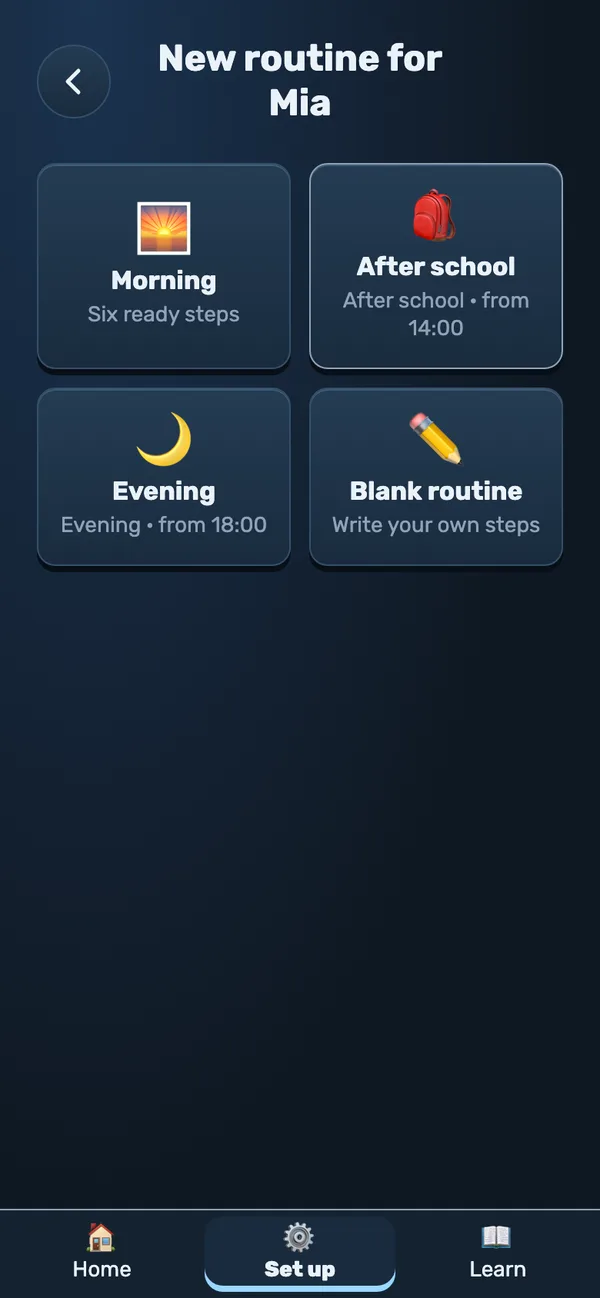
Make the first routine
- On the child card, tap Create routine.
- Pick a ready one: Morning, After school or Evening. Or pick Blank and write your own.
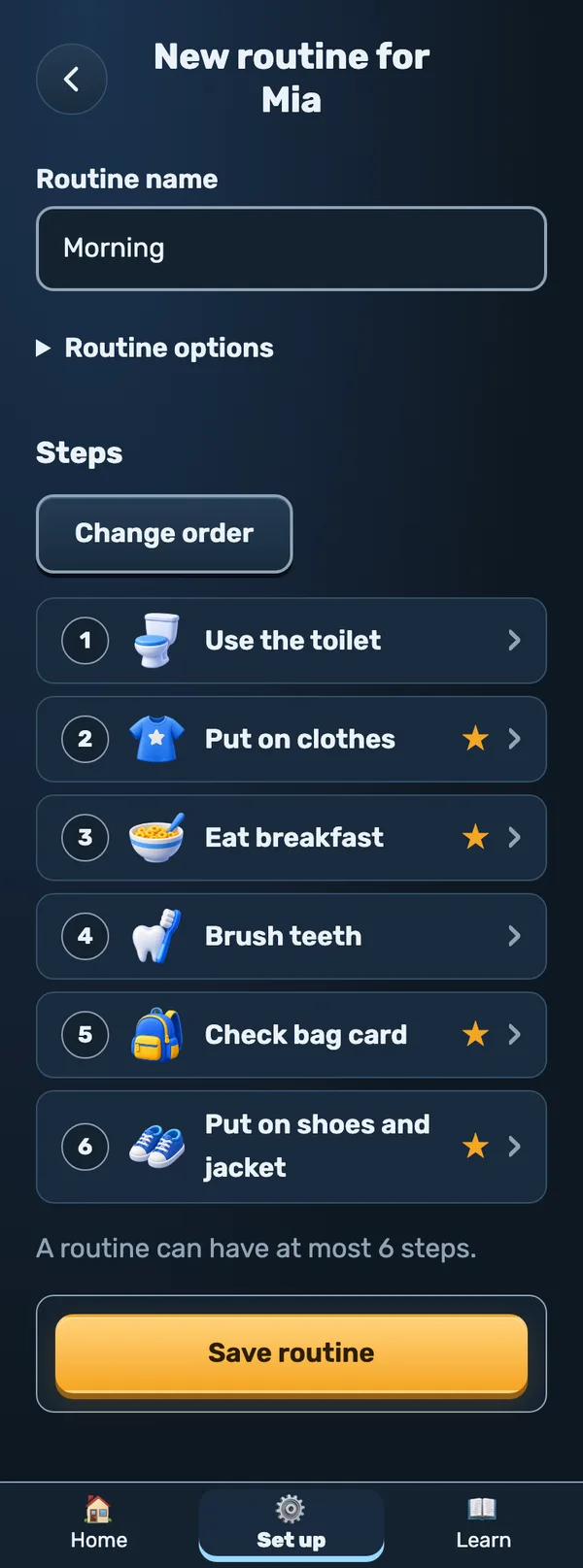
- Change the steps if you want. You can have up to 6 steps.
- Tap Save routine.
What does ★ mean? A star marks the important steps. On a hard day, the kid only has to do the starred steps.
-
6
Bonus stuff (you can do this later)
These three are all on the child card. You don't have to do them today.
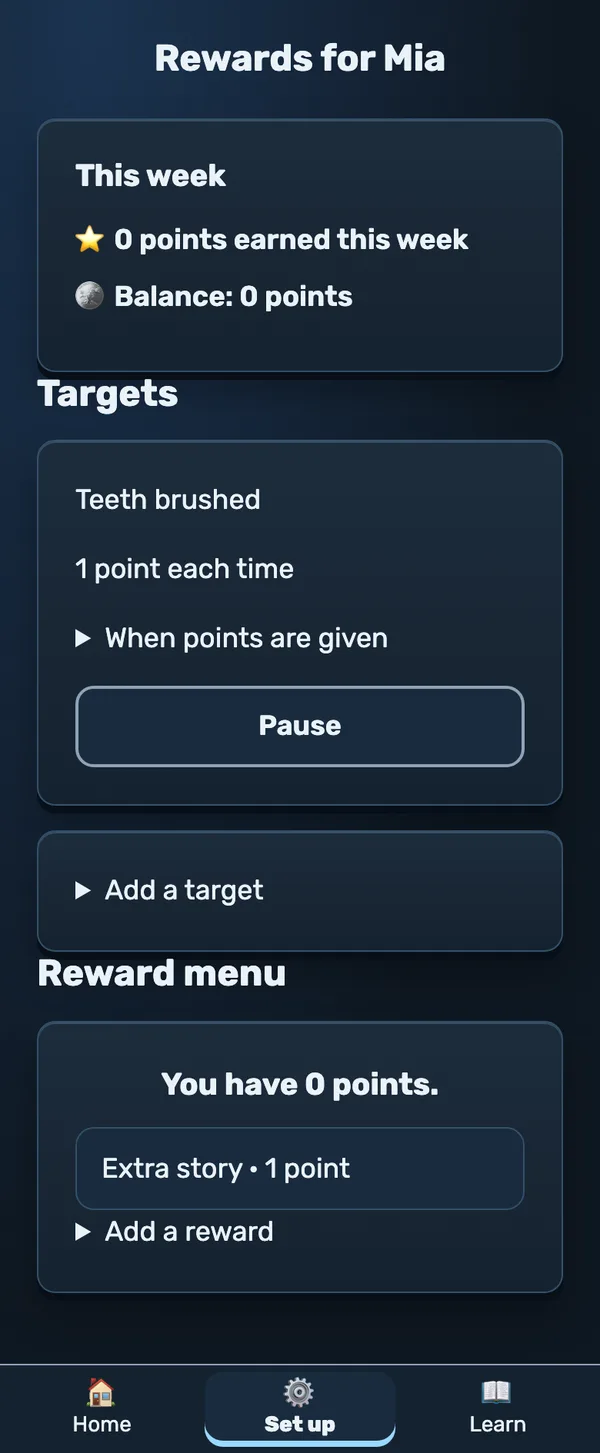
⭐ Rewards
Target = something that earns points, like “Teeth brushed”. Reward = what the points buy, like “Extra story”.
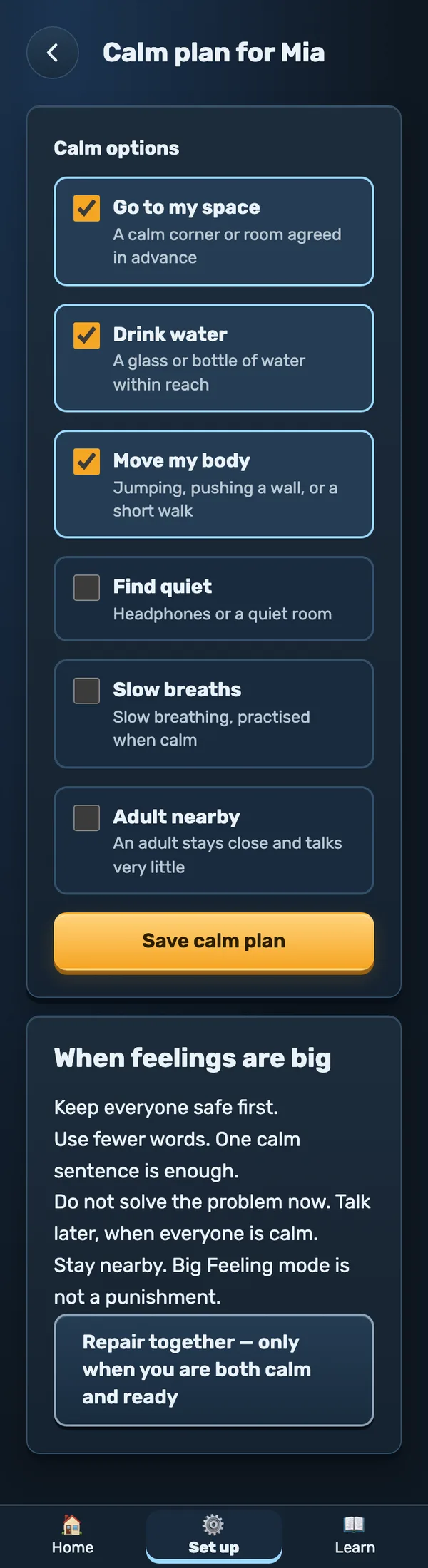
🫧 Calm plan
Pick 2 to 4 things that help when feelings get big. Then tap Save calm plan.
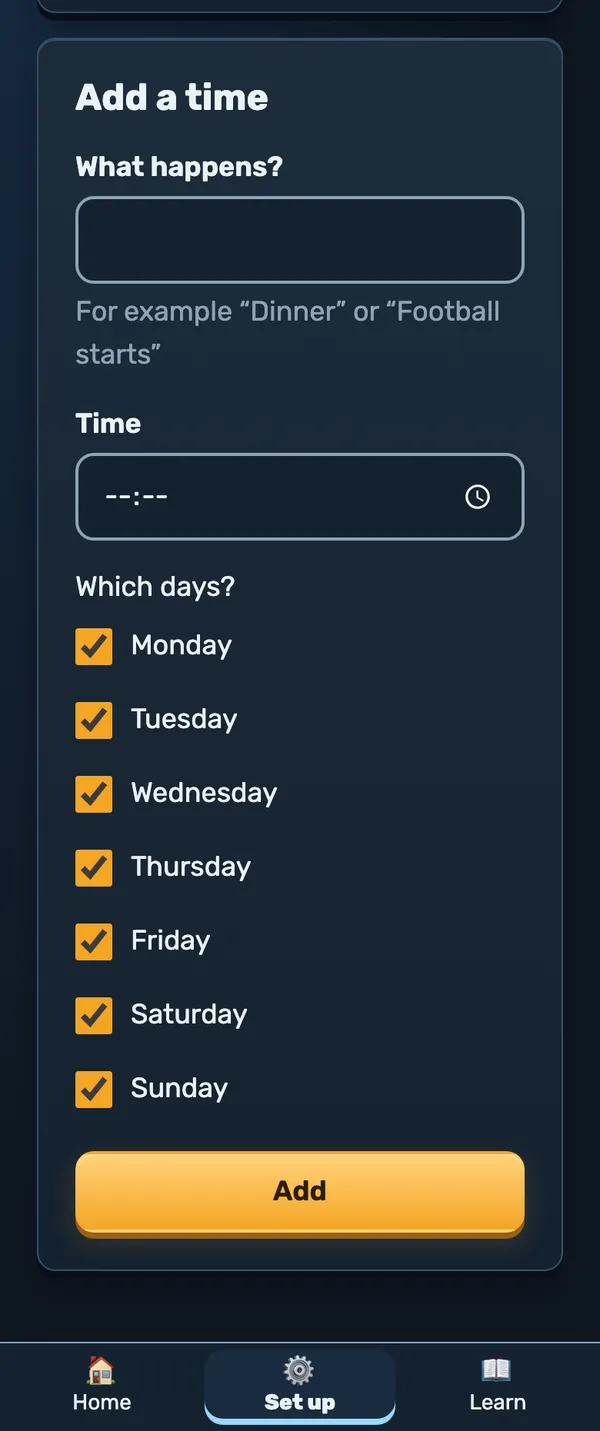
🕒 Times
Add things like “Football at 17:30”. The kid sees them on their Important times screen.
-
7
Connect the kid's phone
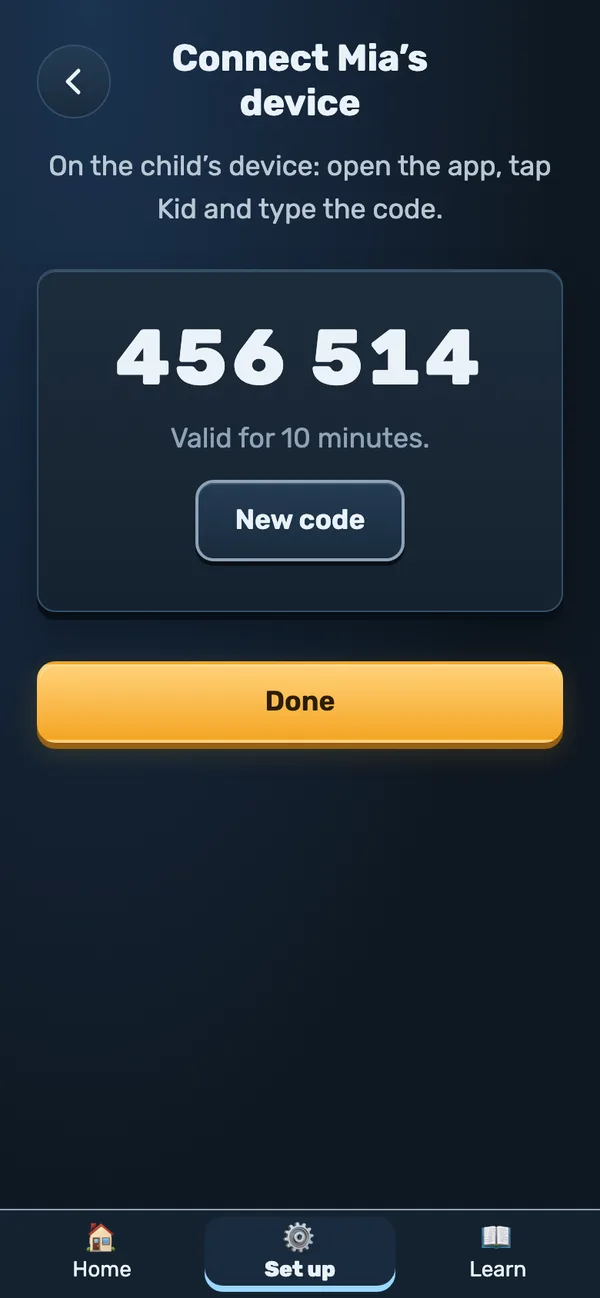
- On the child card, tap Connect child's device.
- You get a 6-number code. It works for 10 minutes.
- Keep this screen open and go to Part 2.
Why a code? The kid never needs your email or password. Their phone only opens kid mode.
Part 2 · The kid phone
⏱ 2 min 📱 kid's phone or tabletThis part is for the kid. Big buttons and one thing at a time. You can't break anything.
-
8
Type the code
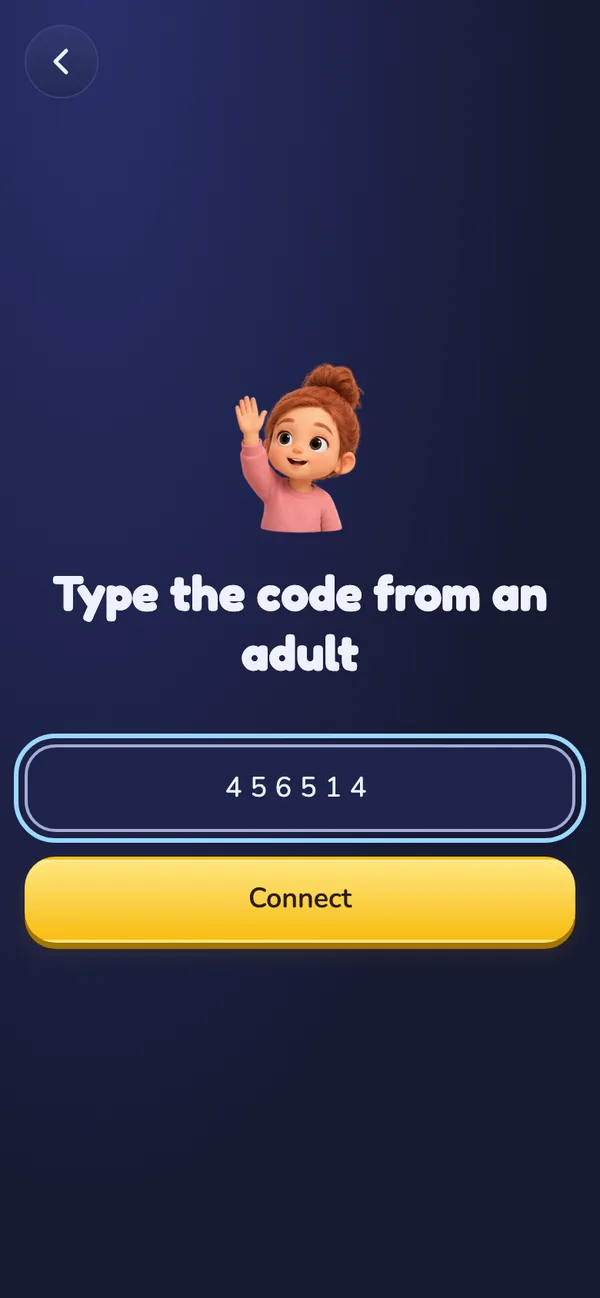
- Open family.qbitz.foo on the kid's phone.
- Tap Kid.
- Type the 6 numbers from the grown-up's screen and tap Connect.
Only once. After this, the phone opens straight into kid mode. The grown-up's screen says “✓ Connected”.
-
9
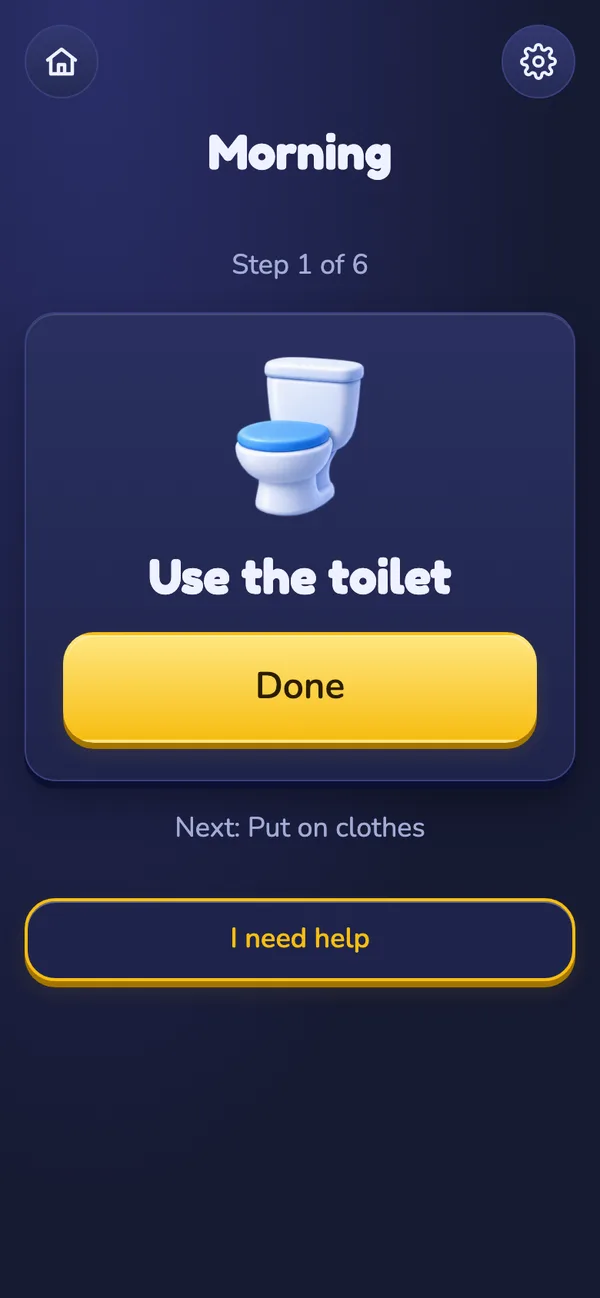
Start the routine
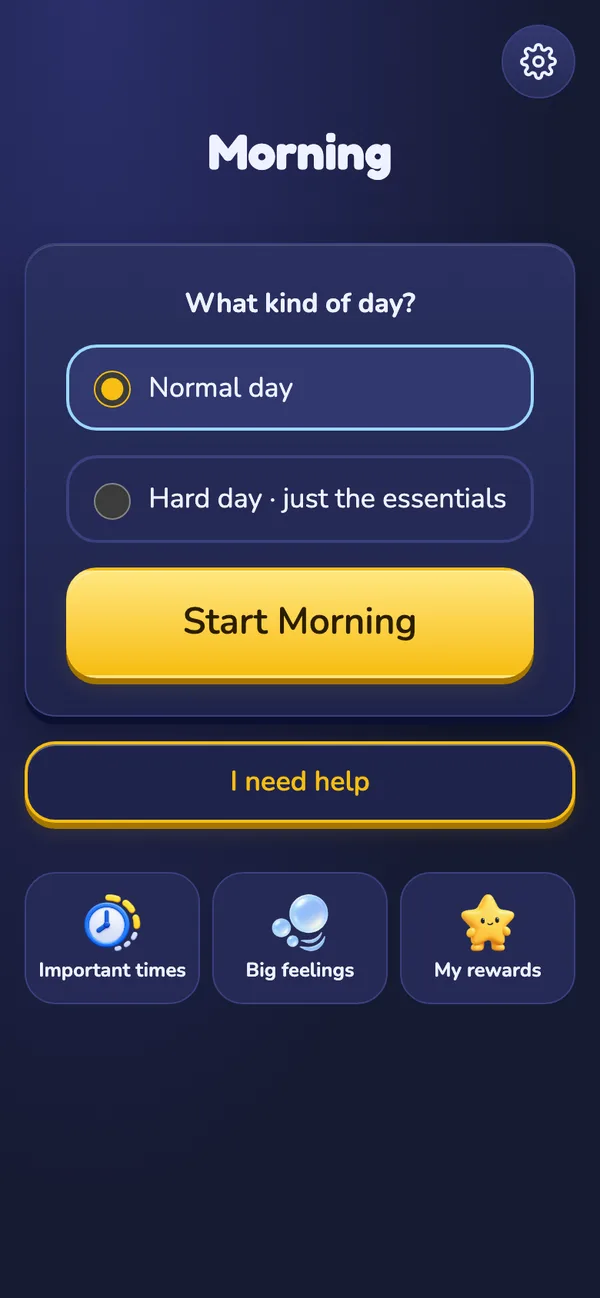
- Pick Normal day or Hard day. On a hard day, you only do the starred steps.
- Tap Start Morning.
- You see one step. Do it for real, then tap Done.
No rush. “Next:” shows what's coming. If the Wi-Fi drops, the app keeps your place.
-
10
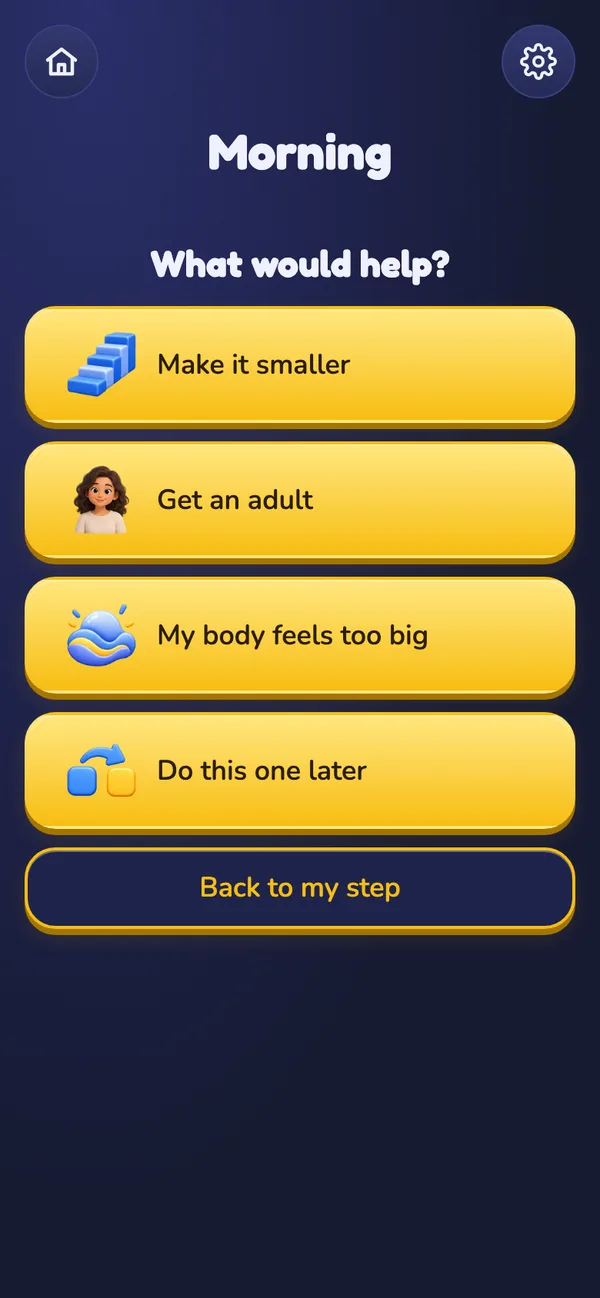
Stuck? Tap “I need help”
- Make it smaller: try the step for just 2 minutes.
- Get an adult: show a grown-up the screen. Asking for help is a good move.
- My body feels too big: calm down first.
- Do this one later: skip it for now.
This is not “failing”. The grown-up only sees that you needed help, so they can check in later.
-
11
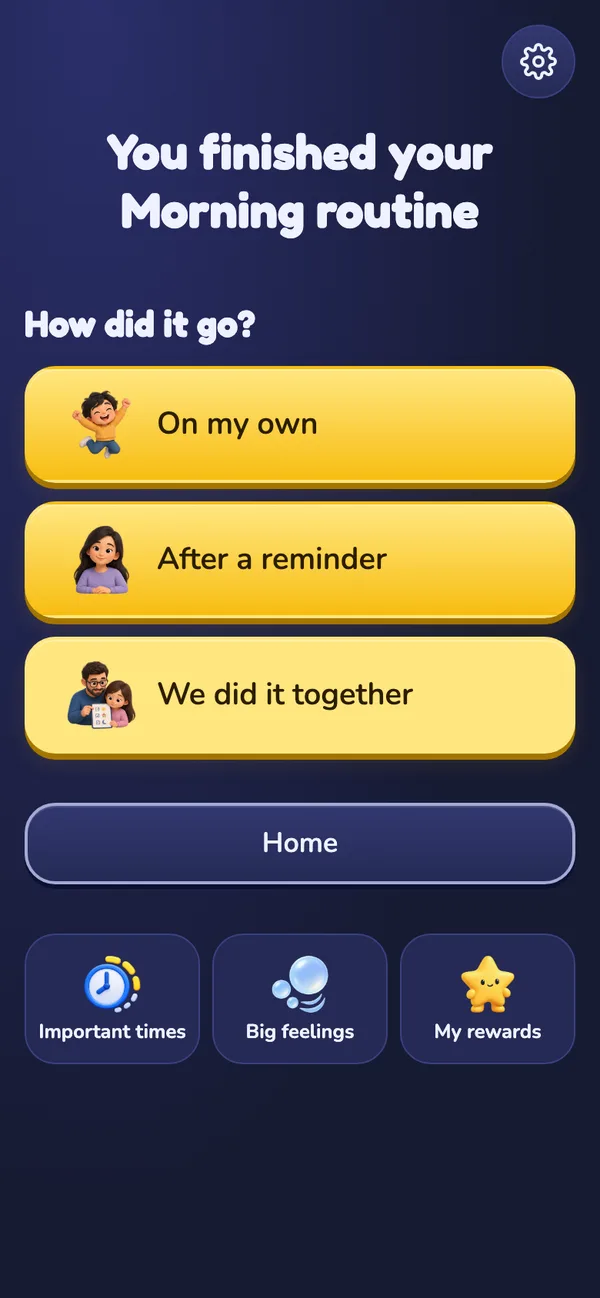
Finish and say how it went
- After the last Done, you see “You finished”.
- Pick one: On my own, After a reminder or We did it together.
Every answer is fine. The app doesn't count streaks, and a missed day doesn't erase anything.
The kid home screen has 4 more buttons
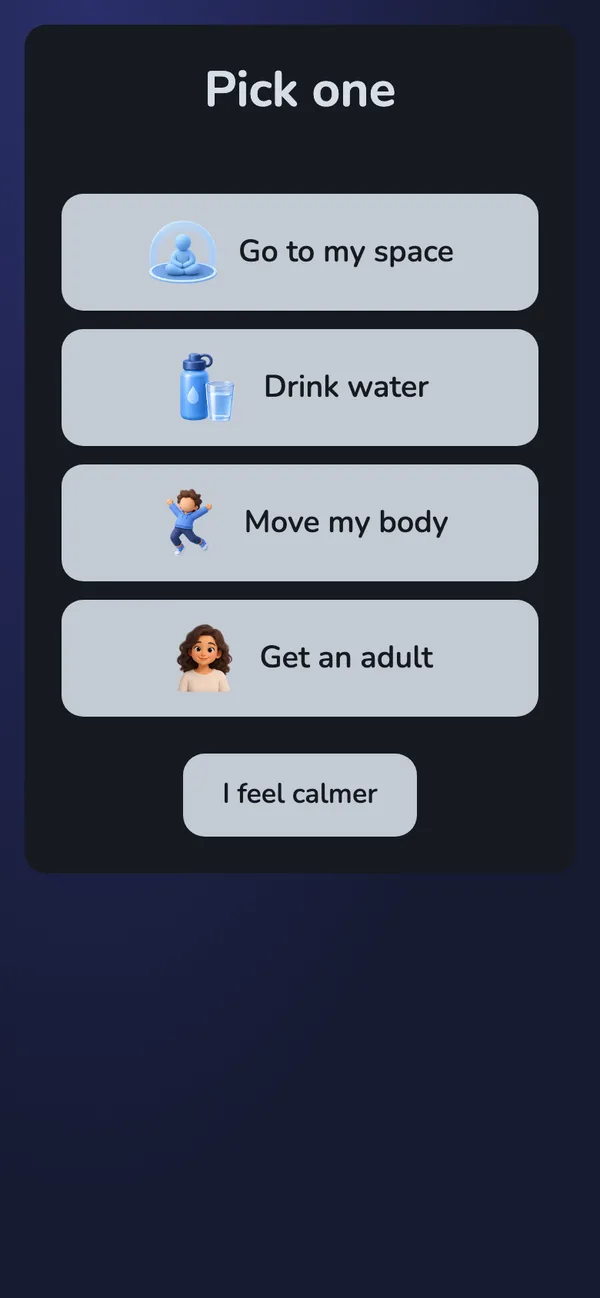
🫧 Big feelings
Angry, sad or too much? Pick one calm thing from the plan. When you feel better, tap I feel calmer. There are no points or lessons here.
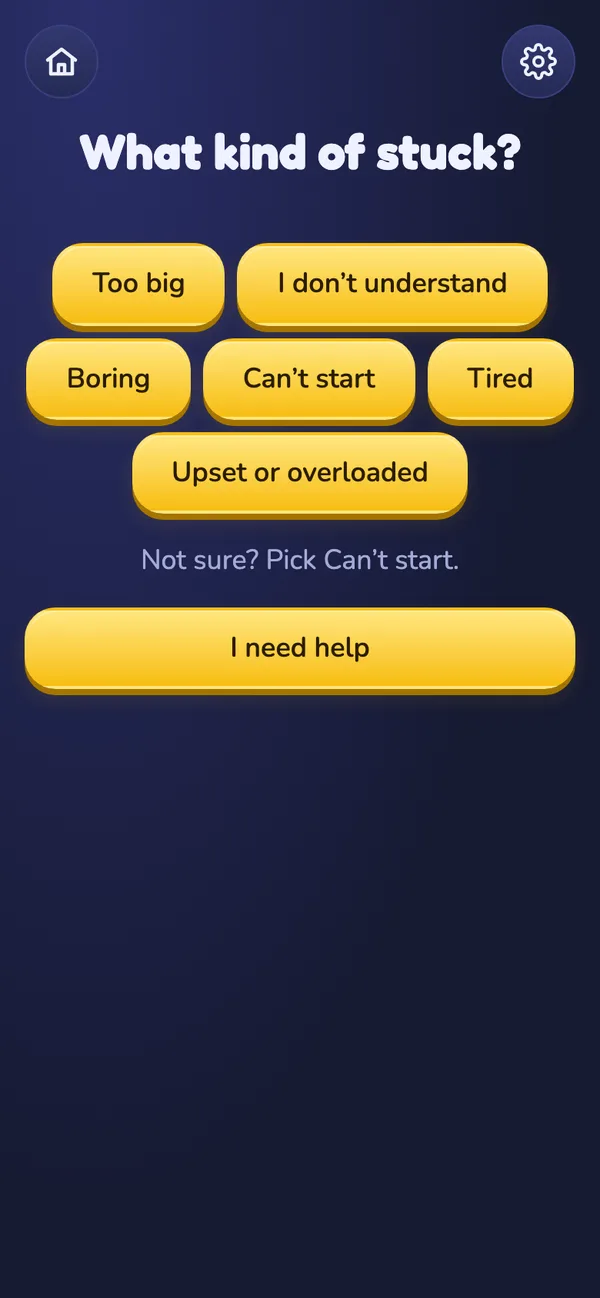
🧗 I'm stuck
Homework feels impossible? Pick what kind of stuck: too big, boring, tired… The app gives you a tiny first step and a short timer.
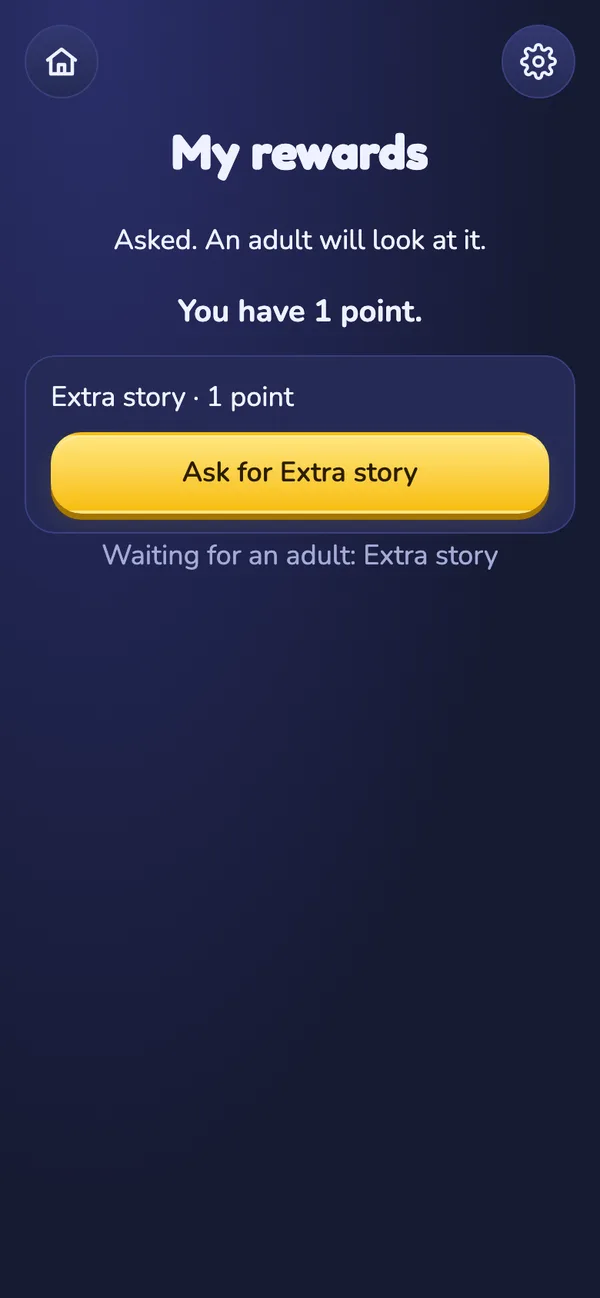
⭐ My rewards
See your points. Tap Ask for… to ask for a reward. A grown-up has to say yes first.
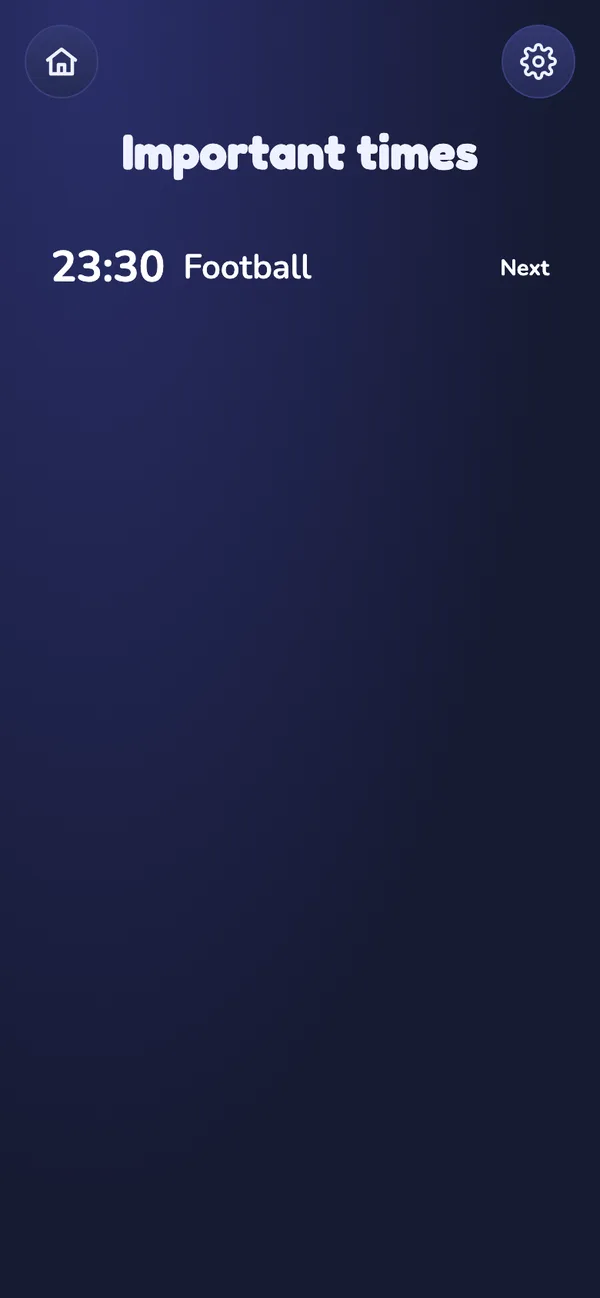
🕒 Important times
What's happening today and what comes next. No more “wait, football is NOW?”
Part 3 · Every day
⏱ 1 min a day 📱 grown-up's phoneAfter setup, the grown-up mostly opens one screen: Home.
-
12
Check “What needs you today”
- Reward requests: tap Approve or Not now.
- Needed help today: check in later, when you're both calm.
- Give points: tap to give today's points for a target.
- Today: see how far the routine got.
“All clear” means nothing is waiting for you. Go enjoy your day.
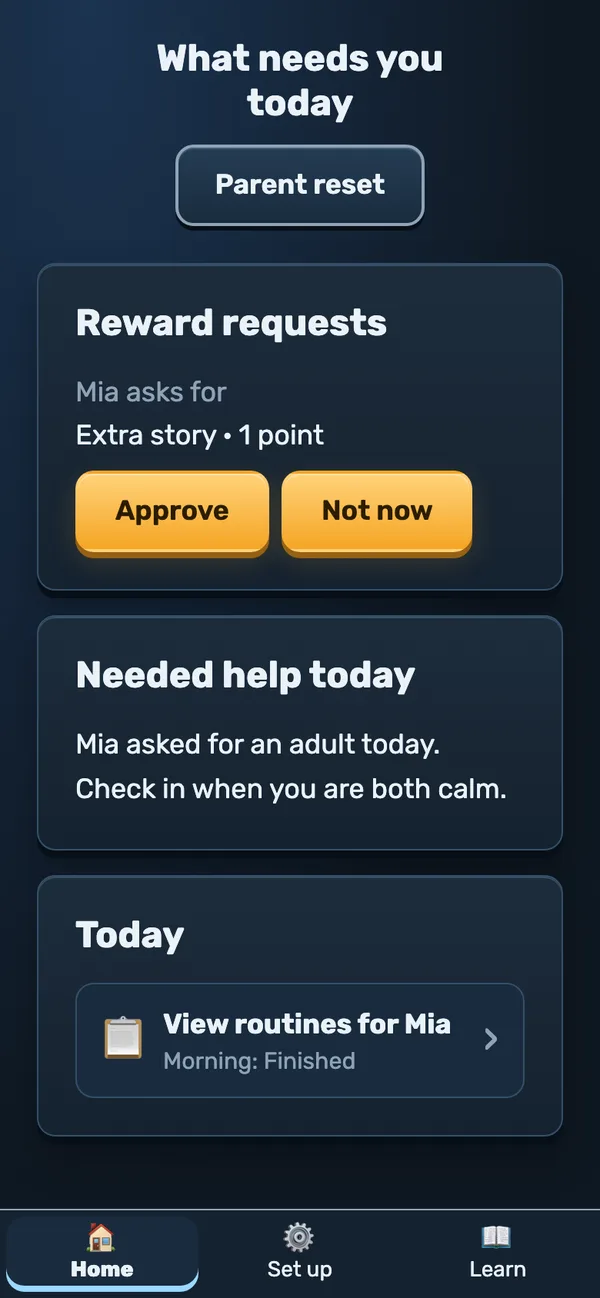
😮💨 Parent reset
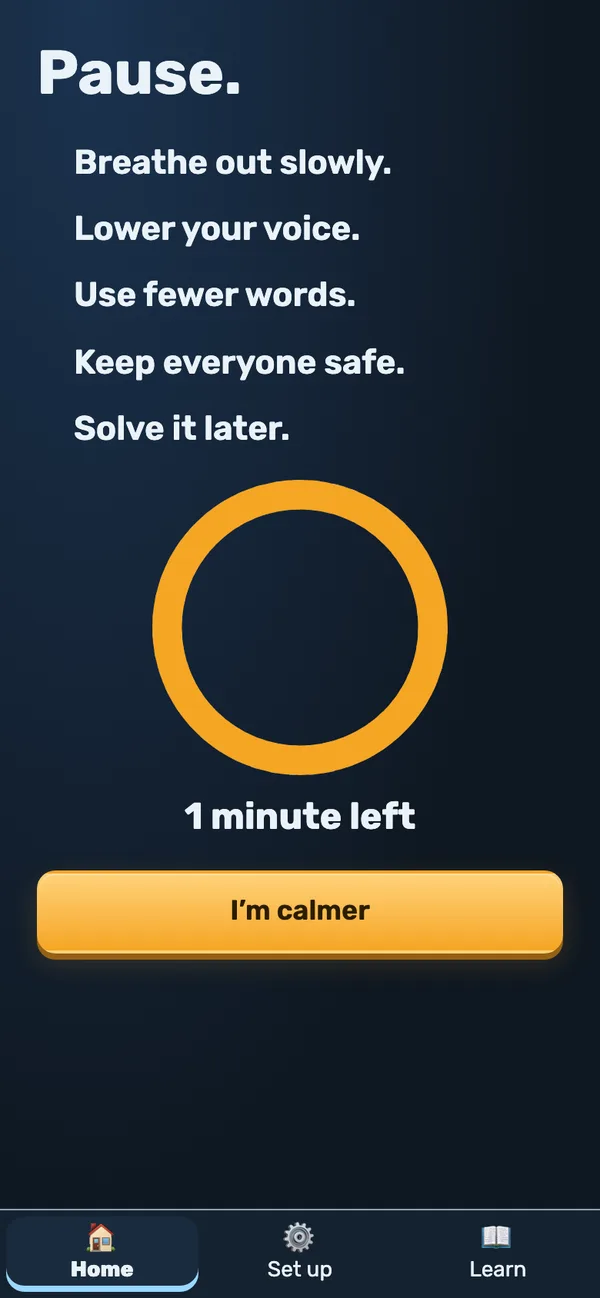
This button is on Home. It's for when the grown-up is about to lose it: a 1-minute pause with a timer. It's not a punishment for anyone.
📖 Learn
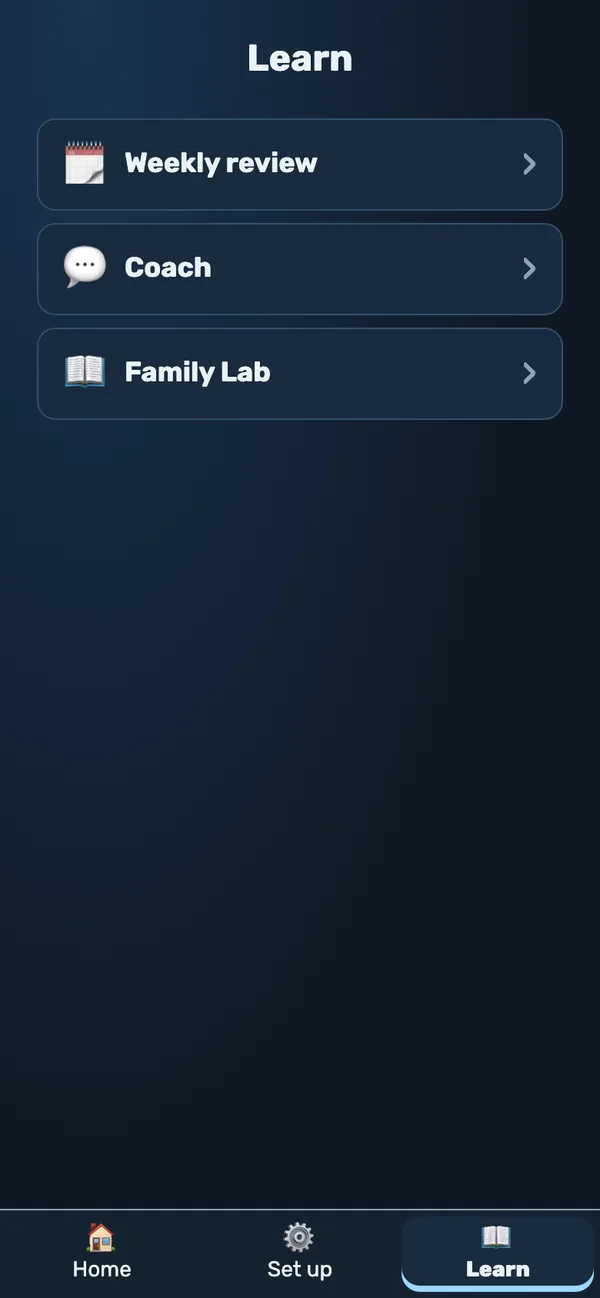
Weekly review: about 3 minutes together on Sunday. Coach: what to say in tricky moments. Family Lab: short articles about ADHD.
Help, something's weird
“This email is not invited”
Only emails on the invite list can make an account. Check for a typo. If it's still wrong, ask the person who runs the app to add your email.
The code doesn't work
A code only works for 10 minutes. On the grown-up's phone, tap New code and type the new one.
I forgot my password
The app can't send a reset email. Ask the person who runs the app for help.
Two grown-ups, one kid?
Right now, each account gets its own family, and a second grown-up can't join. For now, both grown-ups use the same login.
How do I switch language?
Tap Norsk or English on the start screen or on the Family page.
Will it work without internet?
Mostly. If the connection drops during a routine, the kid keeps their place. The taps are saved when the internet comes back.
You're set up 🎉
Start small: try one routine for one week. Leave the rest for later.